Setup Guide
LoopLogic Golf has two configuration areas — Options for round-level details you set each time you play, and Administration for group-level management including your roster, teams, settings, and reset controls.
Options
Options are configured before each round and control the specifics of that day's game. You'll typically review these at the start of every session.
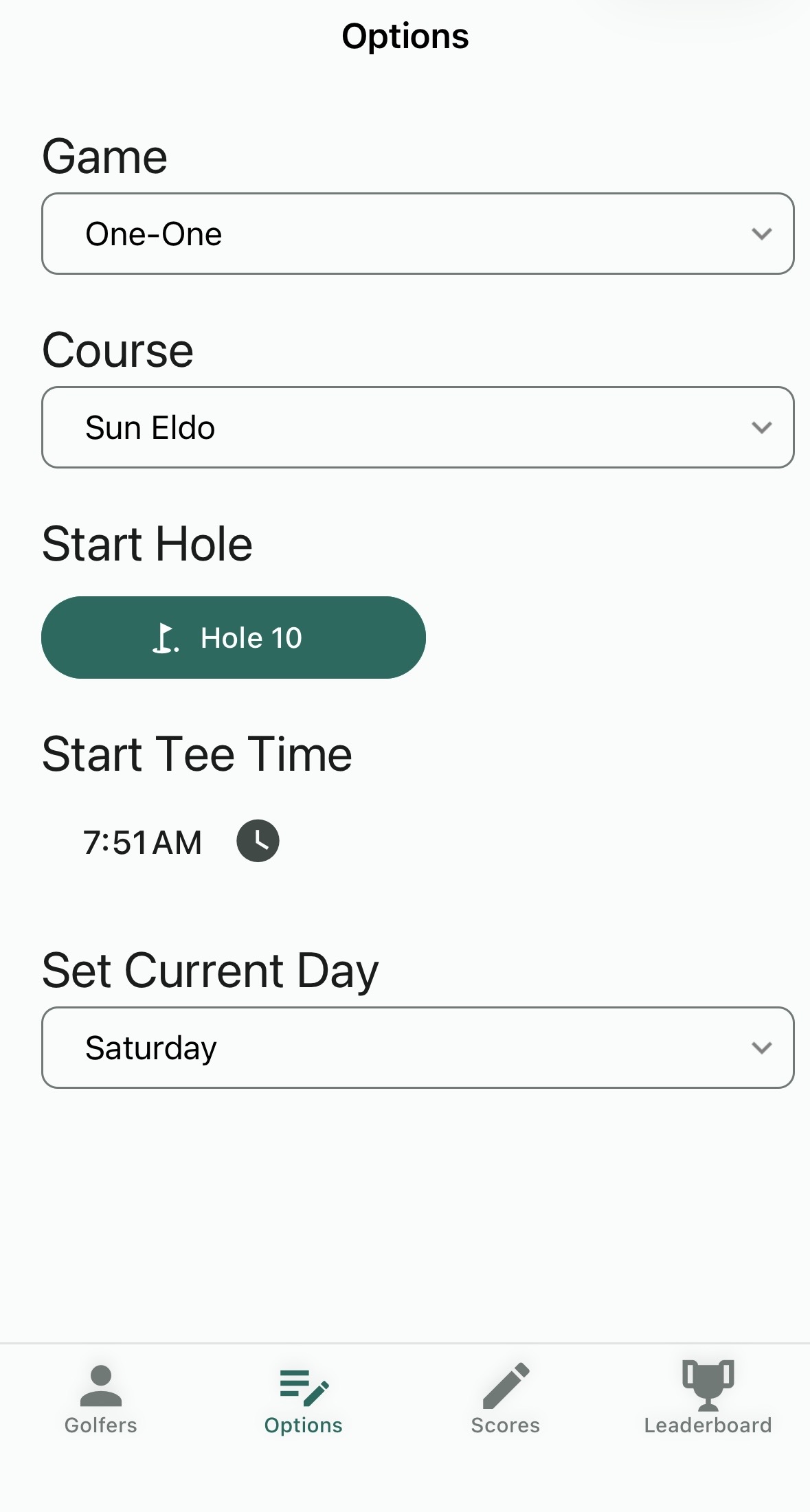
Game
Selects the game format for the round. All formats supported by LoopLogic Golf are available here — from individual games like Stableford and Quota to team formats like Hi-Lo-Total, Vegas, and the various Net combinations. See the Supported Games page for a full description of every format.
Course
Selects which golf course is being played. The course determines the hole-by-hole par used for scoring. Your group's saved courses appear in this dropdown.
Start Hole
Sets the hole where play begins. Tap the button to select any hole on the course, accommodating shotgun starts or split-tee formats where different groups begin on different holes. Scoring wraps around correctly regardless of starting hole.
Start Tee Time
Records the tee time for the round. Tap the clock icon to set the time. This is used for display and scheduling purposes, including showing the tee time on the round summary and sorting rounds chronologically on trip days with multiple tee times.
Set Current Day
Specifies which day of the week this round is being played on. The available days reflect the days enabled in Settings. In Trip Mode this is especially important, as the app associates scores and teams with a specific day across the multi-day schedule.
Administration
The Admin tab gives you full control over your group. From here you can manage your roster, adjust team assignments, configure group-wide settings, and reset data between rounds or trips.
Roster
The Roster screen is the starting point for managing the people in your group. From here you can add new golfers, update existing golfer information, or remove someone from the group entirely.
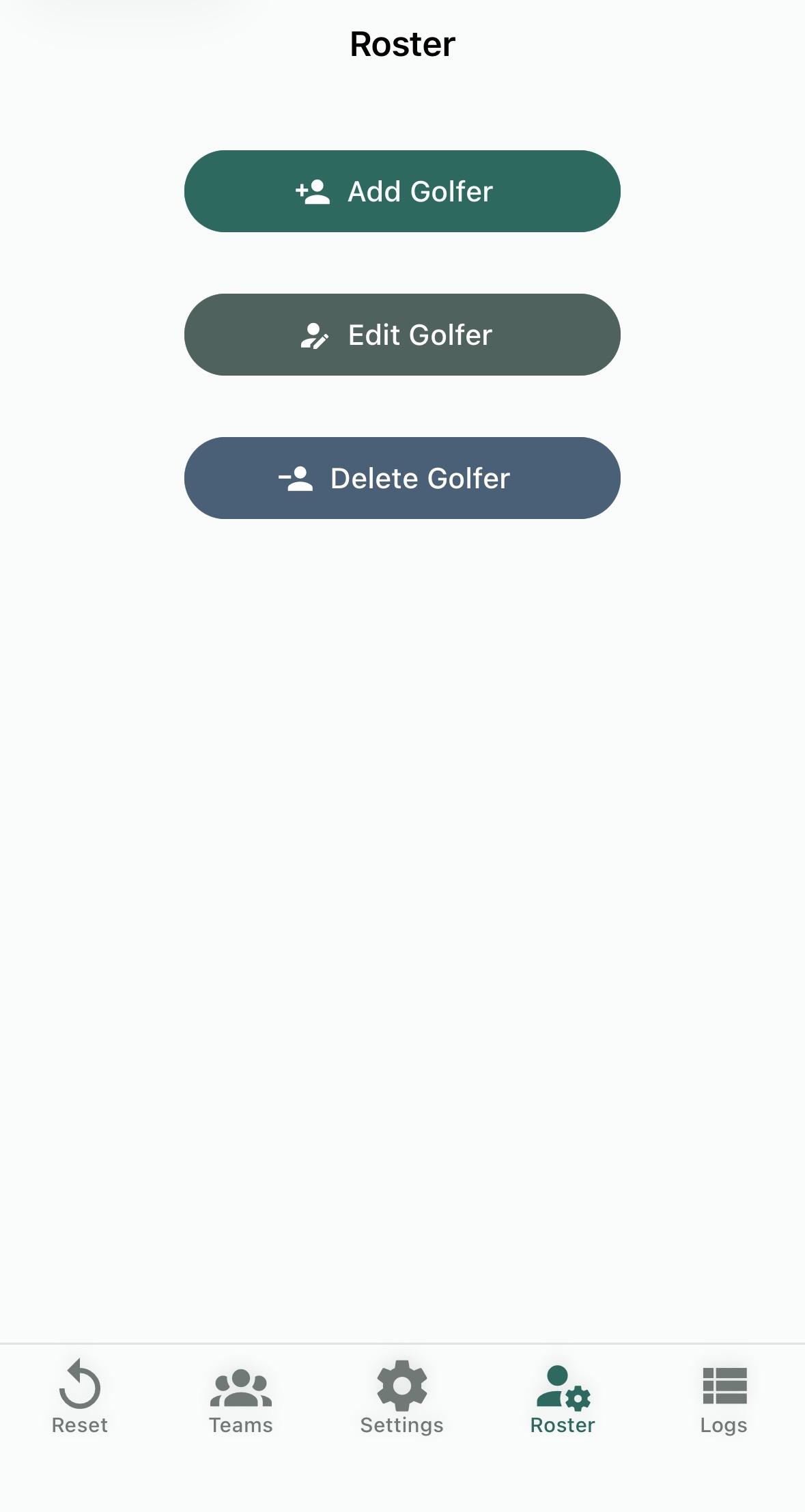
Add Golfer
Opens the Add Golfer form to bring a new player into your group's roster.
Edit Golfer
Opens a list of current golfers so you can update any of their details — name, handicap index, tees, or contact information.
Delete Golfer
Permanently removes a golfer from the group roster. This does not affect historical scores already recorded.
Add Golfer
The Add Golfer form collects the information needed to register a new player. Fields with a red border are required. You can fill in the details manually, or use the Search button to look up the golfer in the GHIN database by name and state — this will auto-populate their handicap index and GHIN number.
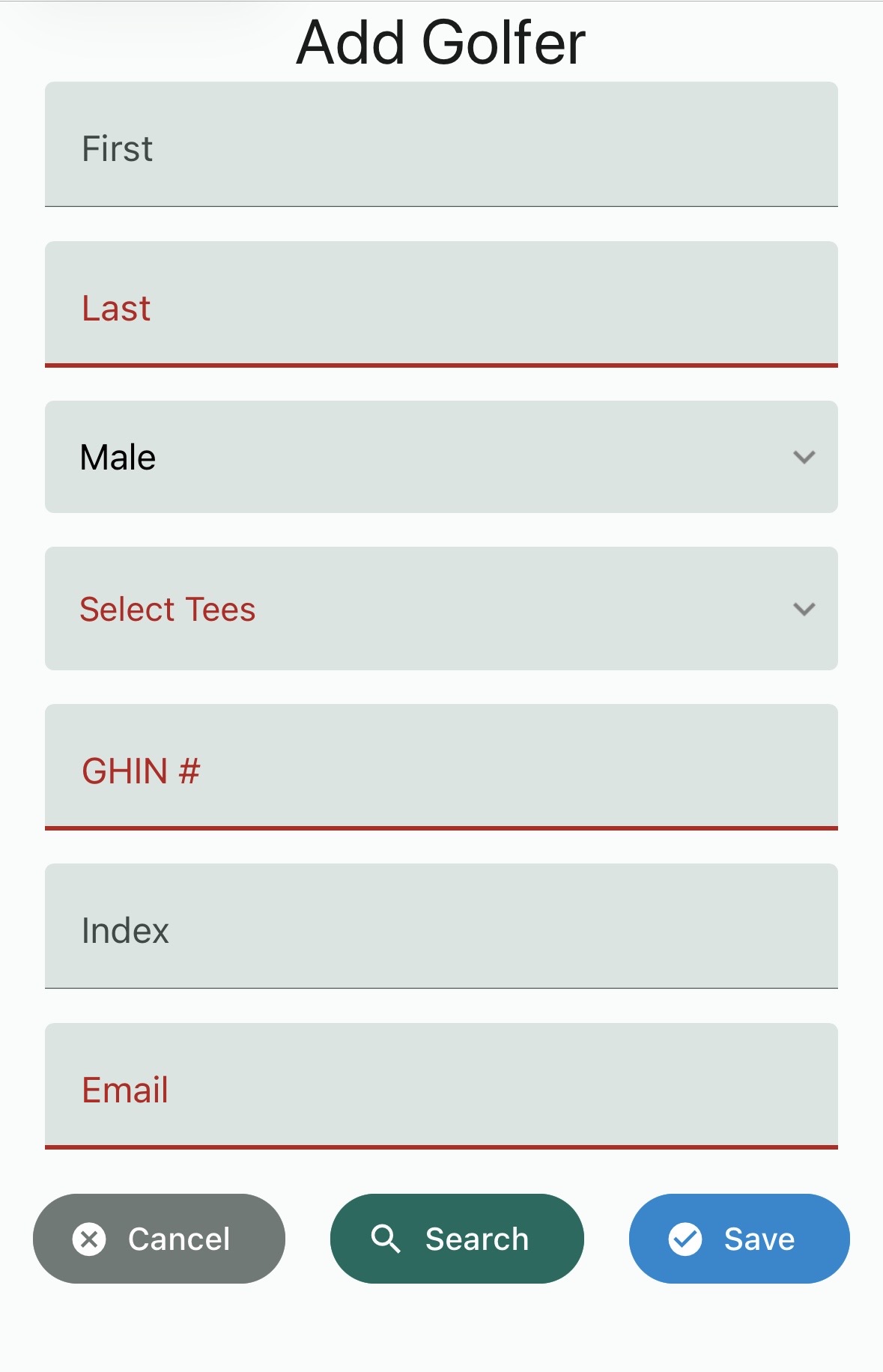
First / Last
The golfer's first and last name. Last name is required.
Gender
Select Male or Female. This is used in conjunction with tee selection for proper handicap calculations.
Select Tees
The set of tees the golfer typically plays from at your home course. Required for calculating course handicaps.
GHIN #
The golfer's GHIN (Golf Handicap and Information Network) number. Required when using Search to pull their official handicap index from the GHIN database.
Index
The golfer's handicap index. If you use Search, this is populated automatically. You can also enter it manually if the golfer doesn't have a GHIN number.
The golfer's email address. Used to send group communications and round summaries to all players.
Teams
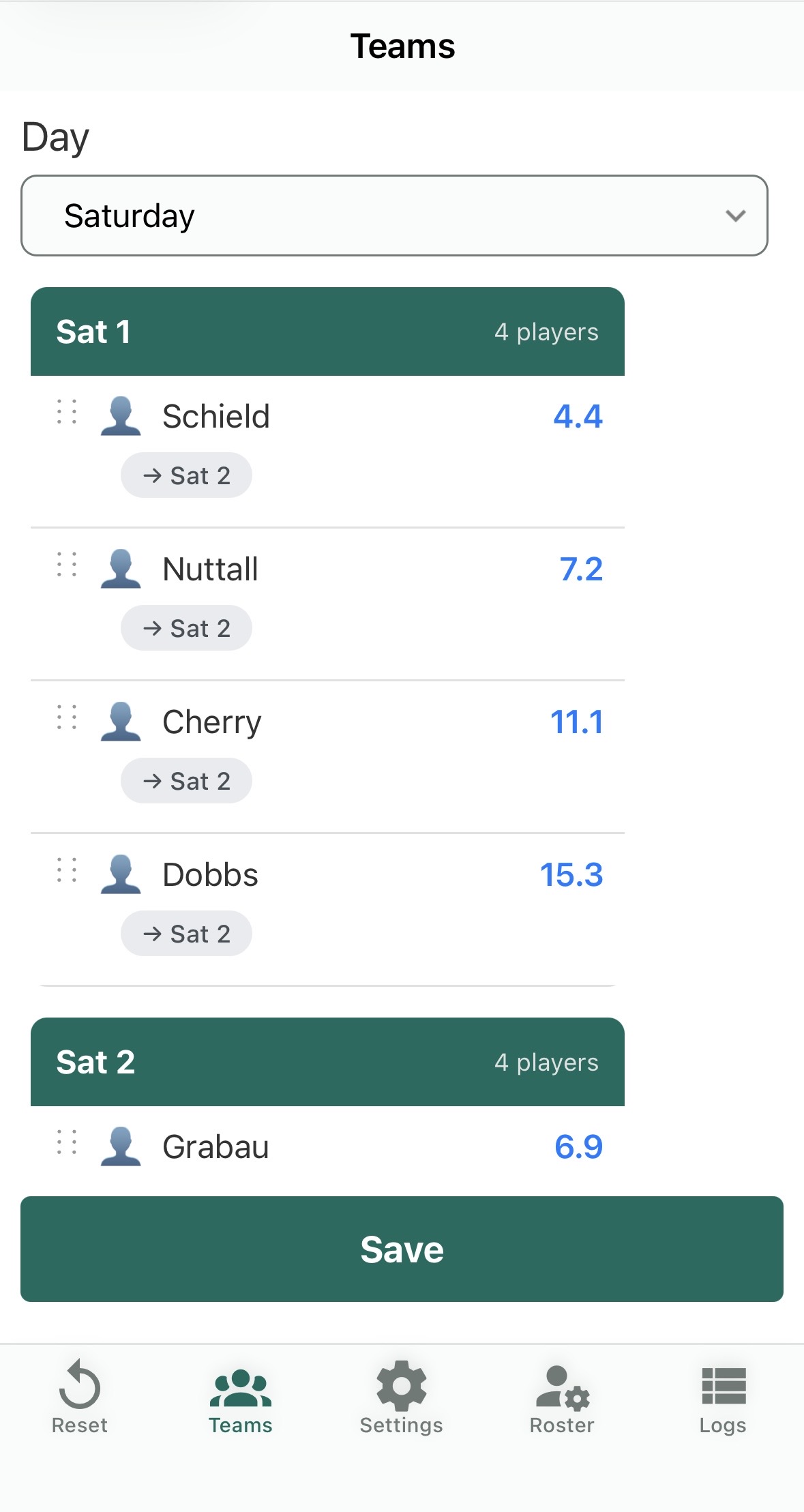
The Teams screen lets you review and manually adjust the team assignments generated for a given day. Select the day from the dropdown at the top to view that day's teams. Each player is shown with their handicap index, making it easy to spot imbalances before the round starts.
Use the drag handle on the left of each player row to reorder players within their current team. To move a player to a different team, tap the labeled arrow button (e.g., → Sat 2) beneath their name — they'll be transferred to that team immediately. Tap Save when you're done to lock in the assignments.
Reset
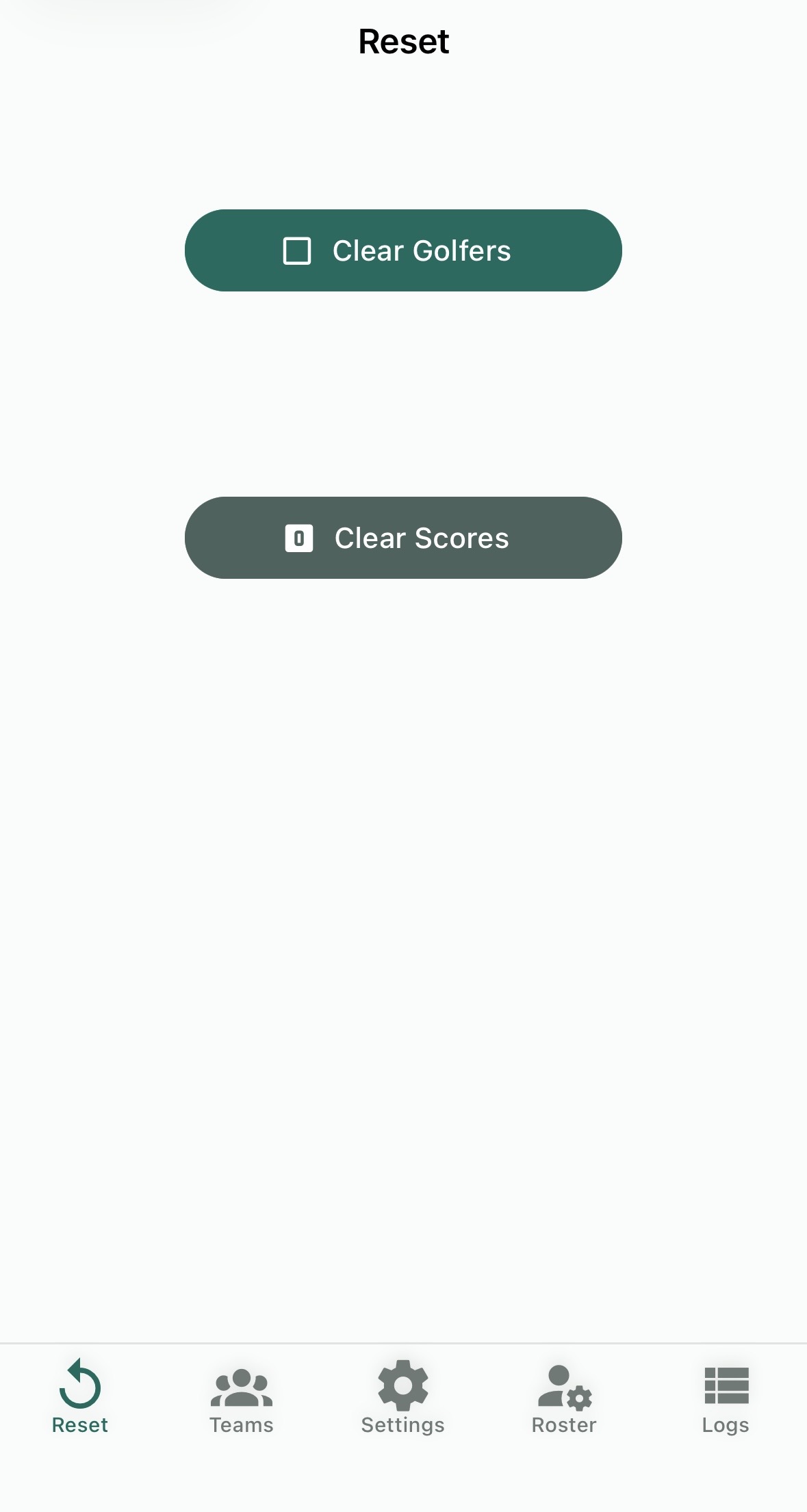
The Reset screen provides two options for clearing data. Use these when starting a new week or preparing for a new trip.
Clear Scores
Removes all recorded scores for the current week or trip while leaving the day schedule, teams, and roster intact. Use this if you need to re-enter scores or start a round over without rebuilding everything else.
Clear Golfers
Performs a full reset — clears the days, teams, and all scores. The group roster itself is preserved, but all scheduling and round data is wiped. Use this at the start of a new week or trip to build fresh from a clean slate.
Settings
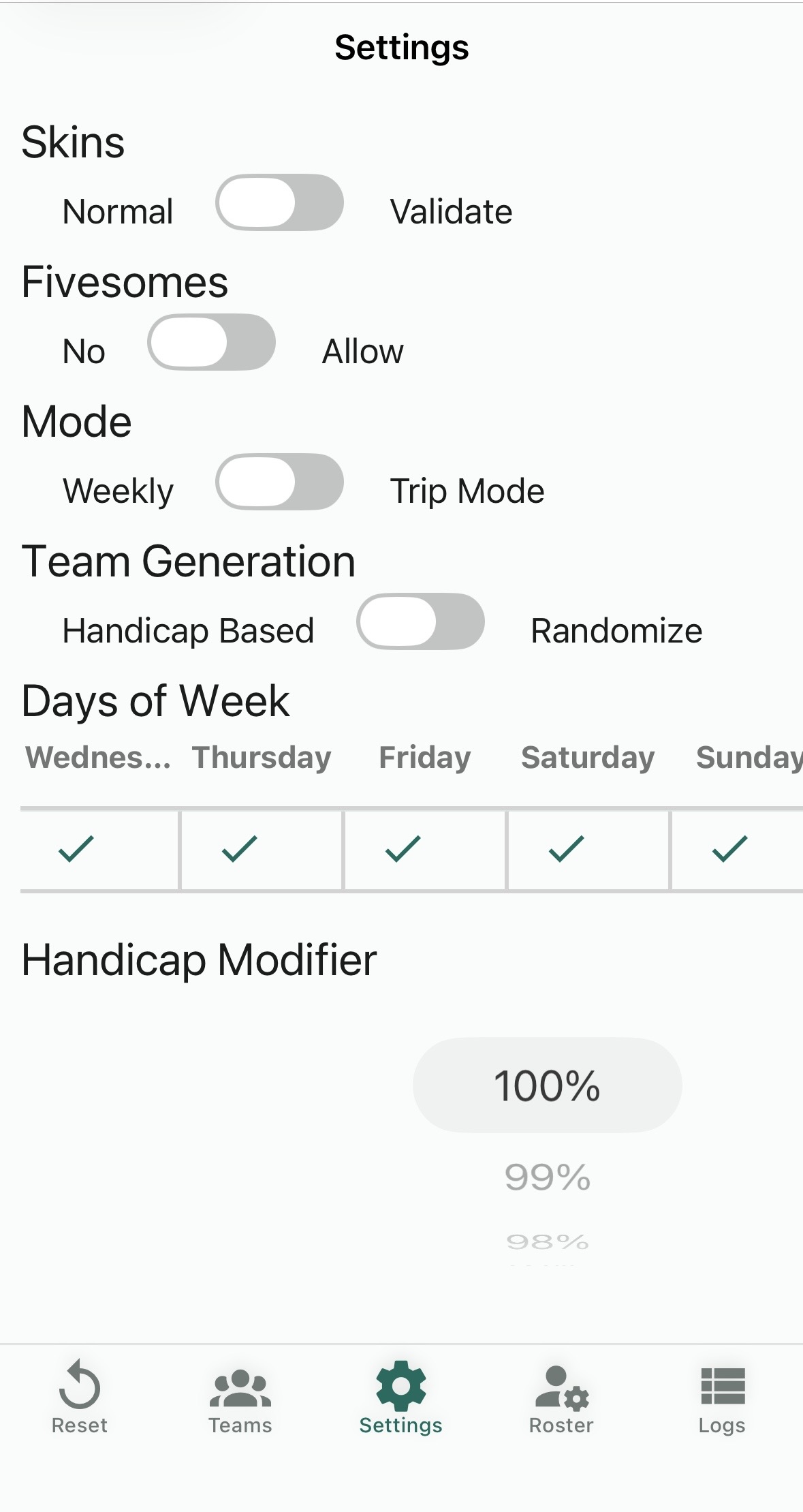
Settings are group-level preferences that control how rounds are organized and scored. These are typically configured once and rarely need to change.
Skins
Normal | ValidateControls how skins are awarded. In Normal mode, a skin is won outright any time a single player has the low score on a hole. In Validate mode, a player must also make net par or better on that hole to collect the skin — a low score alone isn't enough if it's over par net.
Fivesomes
No | AllowDetermines whether the app will create groups of five players when dividing up teams. When set to No, all groups are kept to four players or fewer. When set to Allow, fivesomes are permitted if the player count doesn't divide evenly into foursomes — the extra player is added to one group and participates fully in that team's scoring.
Mode
Weekly | Trip ModeSets the overall context for how the app manages rounds. Weekly mode is designed for regular weekly games where team pairings are generated fresh each time based on handicap or random assignment. Trip Mode is intended for multi-day golf trips — instead of random or handicap-based pairings, the app builds teams each day to maximize the number of unique player combinations over the course of the trip, so everyone gets to play with as many different partners as possible.
Team Generation
Handicap Based | RandomizeControls how teams are formed in Weekly mode. Handicap Based balances teams by distributing players according to their handicap indexes, so each team has a roughly equal mix of skill levels. Randomize assigns players to teams at random, regardless of handicap.
Days of Week
Select which days of the week your group plays. Tapping a day toggles it on (checkmark) or off. Only the selected days appear in scheduling and day selection dropdowns throughout the app — useful for groups on a fixed schedule.
Handicap Modifier
A percentage applied to each player's handicap when calculating net scores. At 100%, the full handicap is used. Lowering the modifier reduces the strokes given to each player, tightening the gap between high and low handicappers. This is sometimes called a "handicap allowance" and is common in competitive formats where full handicaps would favor higher-handicap players too heavily.